Setting Up an Authenticator
Last updated: October 2, 2026
An authenticator makes a new 6-digit code every 30 seconds. Hanover Park asks for one when you sign in and before sensitive actions, such as paying bills or changing wire instructions.
You can use any of these:
A password manager: 1Password, Bitwarden, Apple Passwords
An authenticator app: Google Authenticator, Microsoft Authenticator
A desktop authenticator on your computer
A shared inbox can use one authenticator stored in a shared password manager vault, so the whole team can get codes.
Set It Up
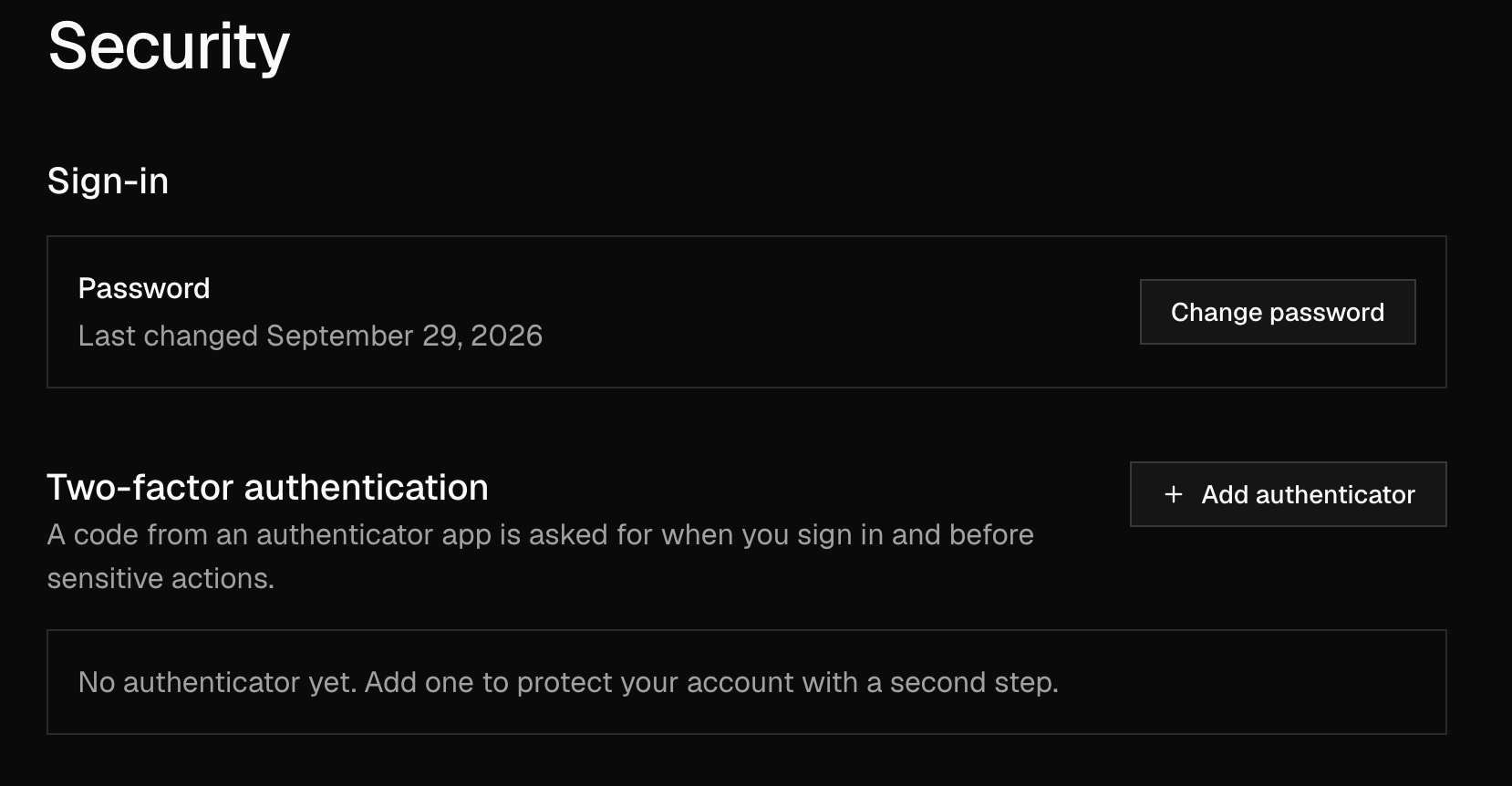
Go to Settings → Security. Under Two-factor authentication, click Add authenticator.
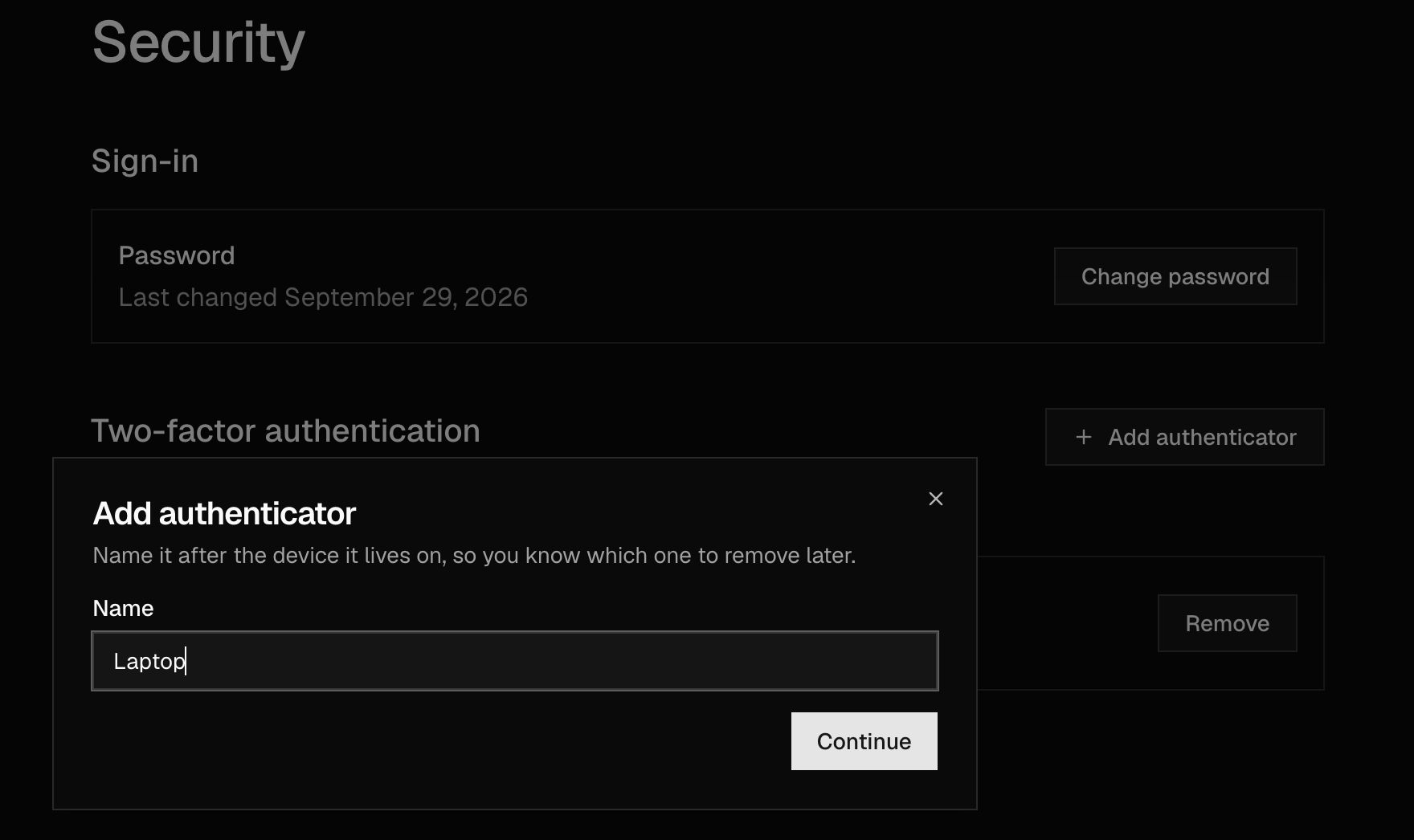
Name it after the specific device or app it lives on (for example "George's Laptop" or "Matt's 1Password"), so you know which one to remove later. Click Continue.
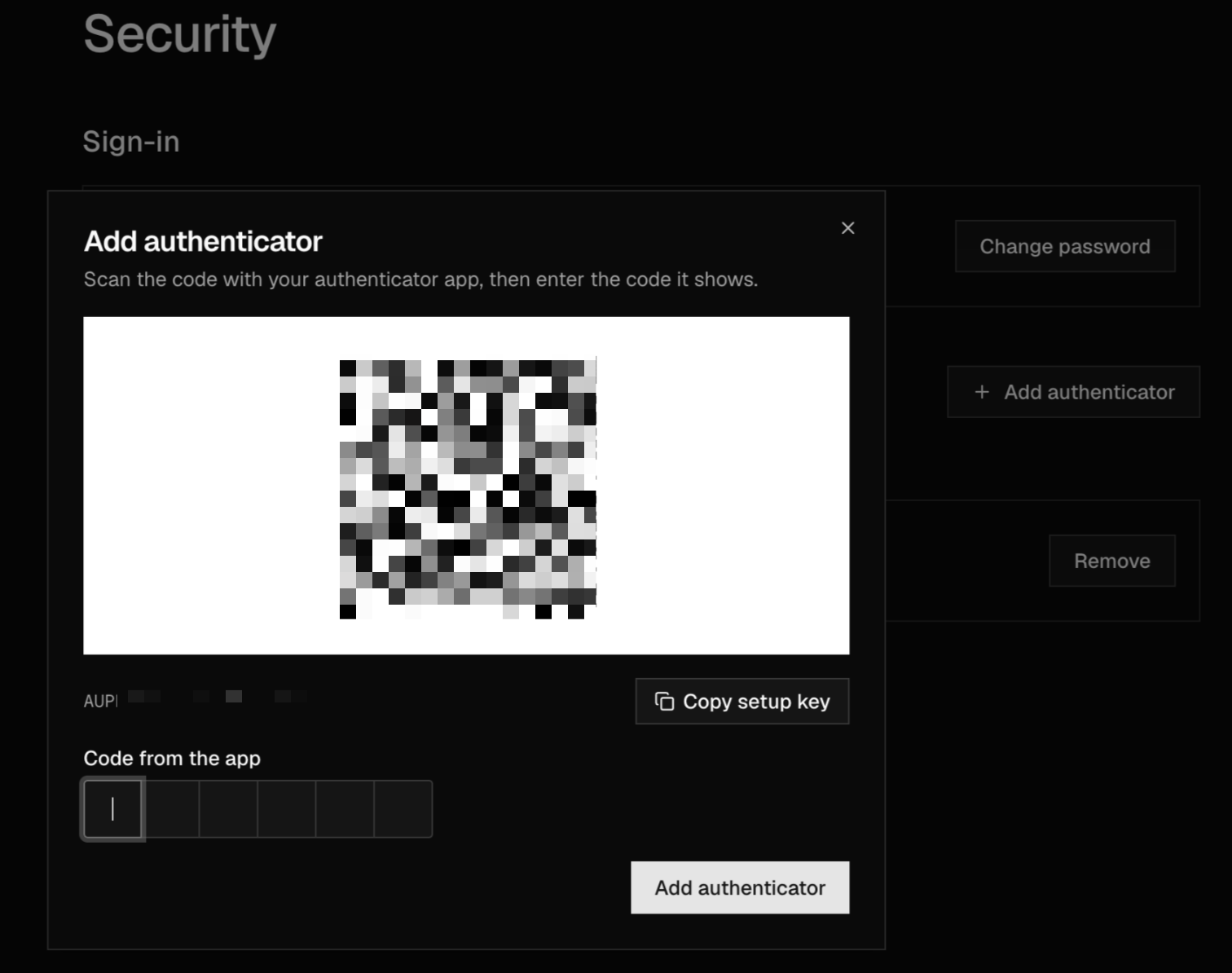
Scan the QR code with your app. If you can't scan it, click Copy setup key and paste the key into your app instead.
Enter the 6-digit code your app shows in Code from the app, then click Add authenticator.
If this is your first authenticator, save the recovery key you're shown. It's shown once.
You can also set one up when Hanover Park asks at sign-in. If you choose Set up 2FA later, you'll be asked again every time you sign in, and you'll need to set one up before your first sensitive action.
Add a Second Authenticator
You can have up to 5 authenticators, for example your phone and a password manager. Add the new one before you wipe or replace an old phone.
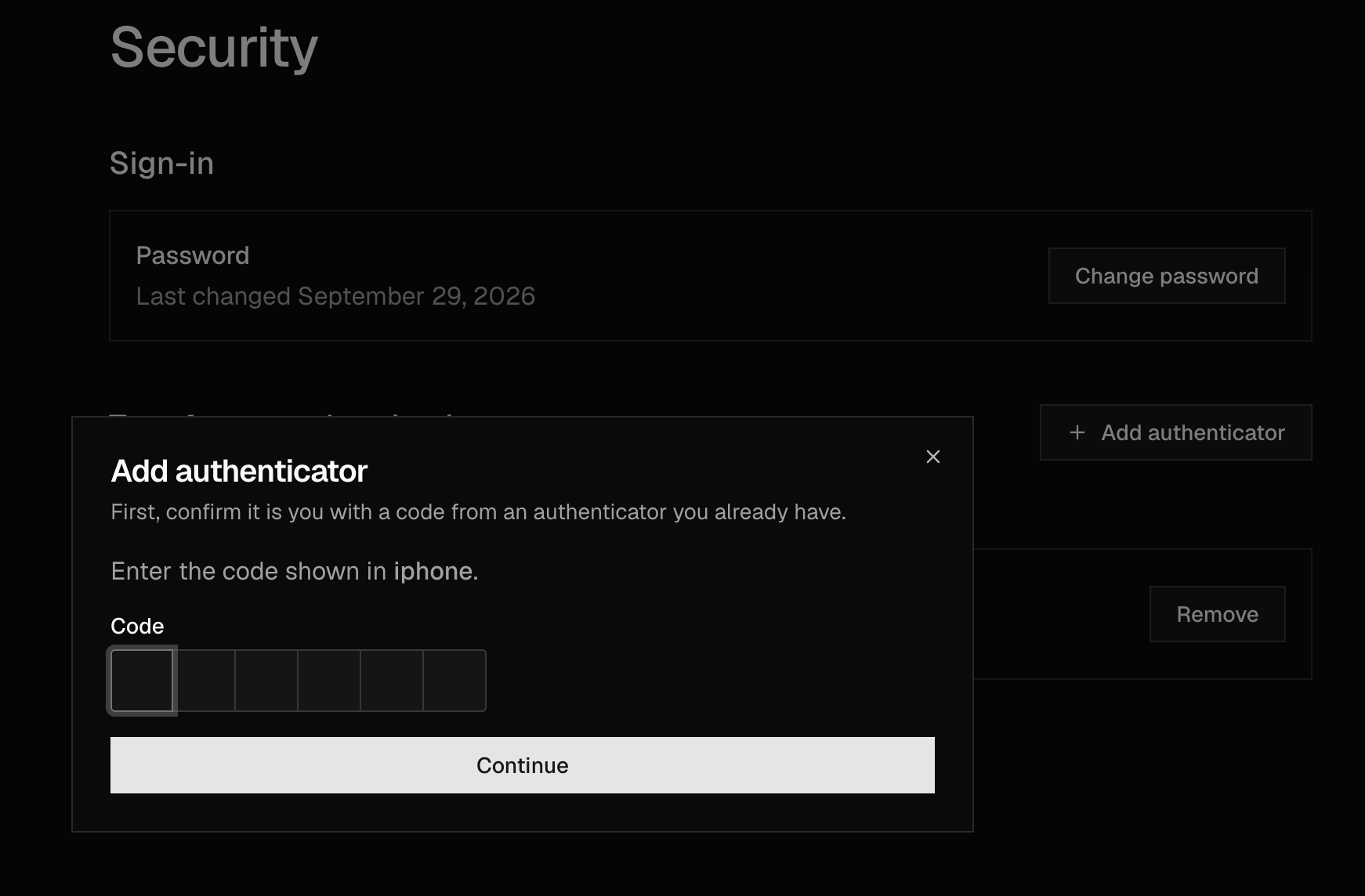
When you already have an authenticator, clicking Add authenticator first asks for a code from it to confirm it's you. Enter the code and click Continue, then follow the steps above.
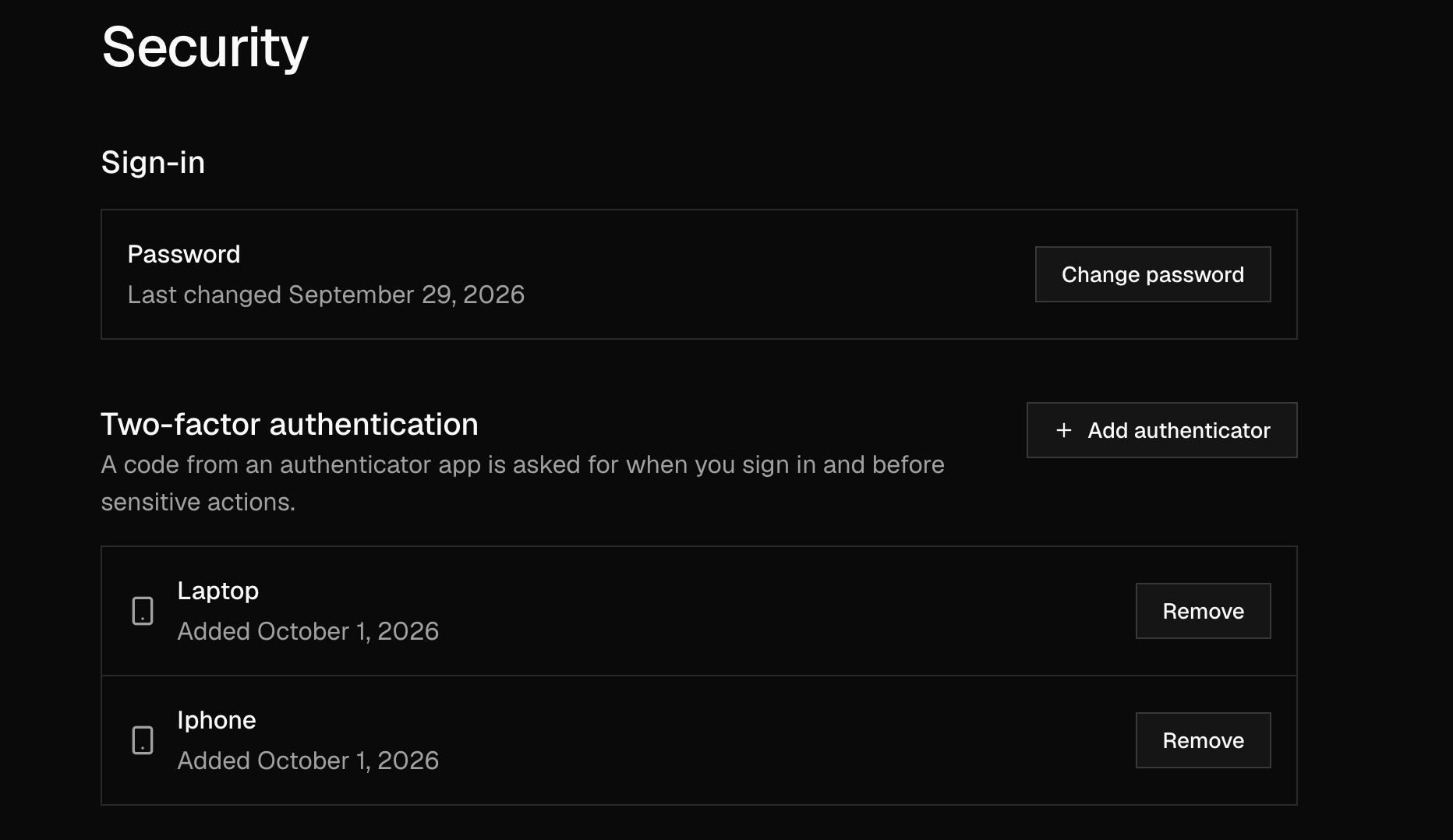
Settings lists each authenticator with its name and the date you added it.
Replace or Remove an Authenticator
Go to Settings → Security → Two-factor authentication.
To replace one, click Add authenticator and set up the new one first.
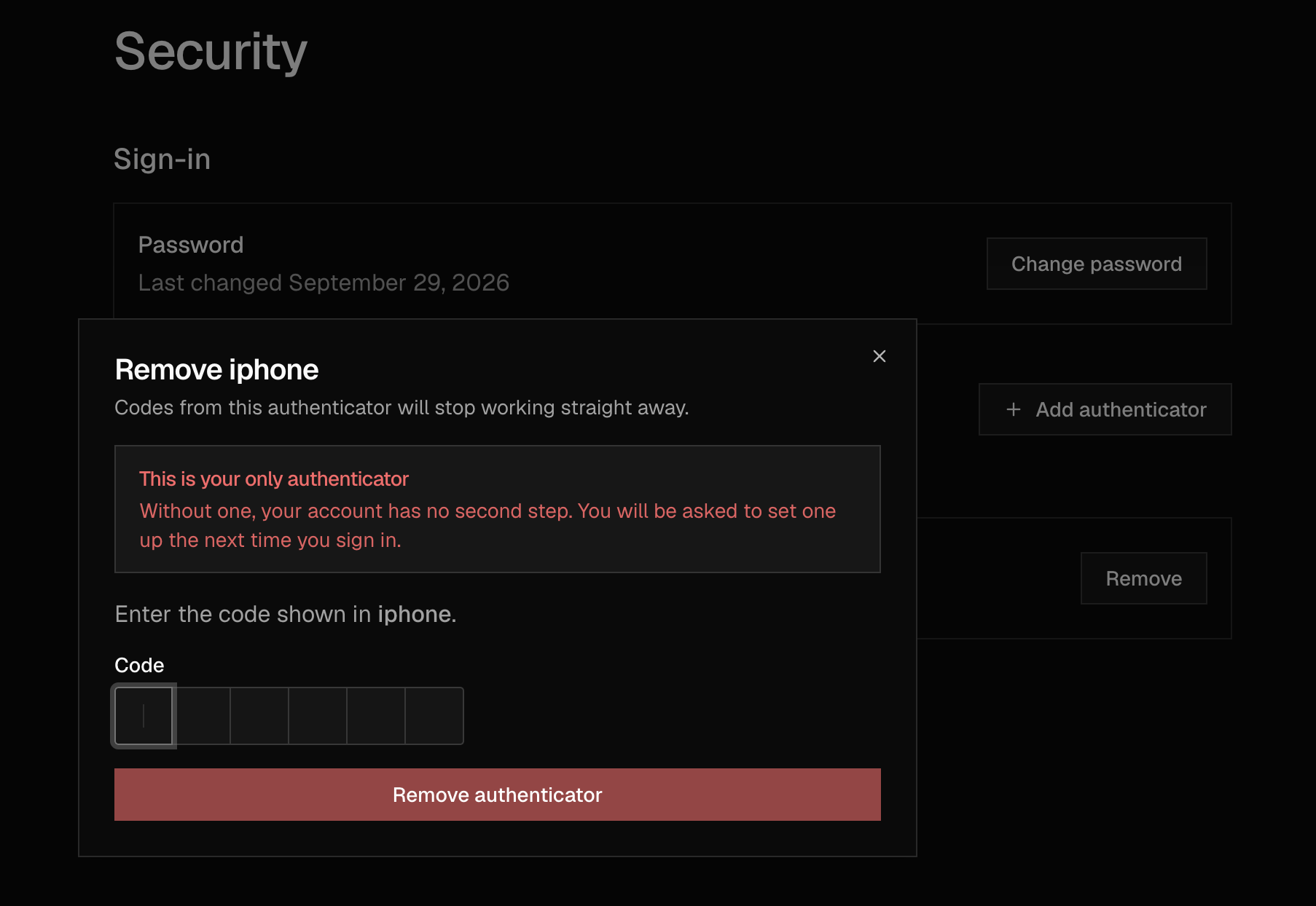
Next to the old one, click Remove, enter a code, and click Remove authenticator. Codes from it stop working straight away.
If it's your only authenticator, you'll see a warning first: without one, your account has no second step, and you'll be asked to set one up the next time you sign in. Removing your last authenticator also removes your recovery key.