Using Text Messages for Two-Factor Authentication
Last updated: October 13, 2026
You can get your sign-in code by text message instead of from an authenticator app. Text messages work with US and Canadian mobile numbers only.
We Recommend an Authenticator App
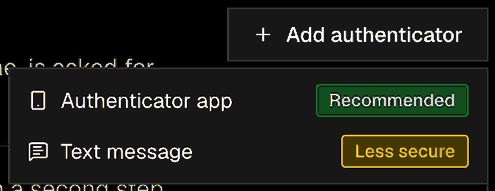
Authenticator apps provide greater security than text messages, and they work without a cell signal. If you can, set up an authenticator app and keep a phone as a backup. See 📄 Setting Up an Authenticator.
Add a Phone
Go to Settings → Security. Under Two-factor authentication, click Add authenticator, then choose Text message.
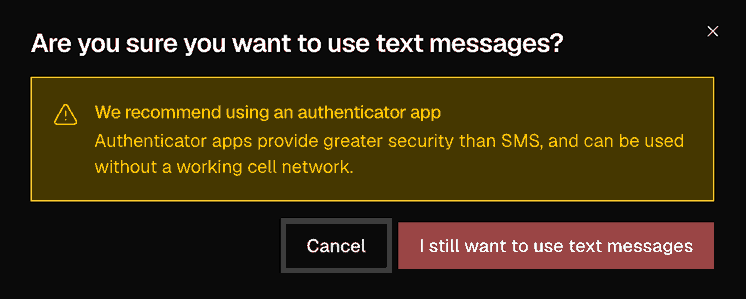
Hanover Park asks if you're sure. Click I still want to use text messages.
If you already have an authenticator, enter a code from it to confirm it's you.
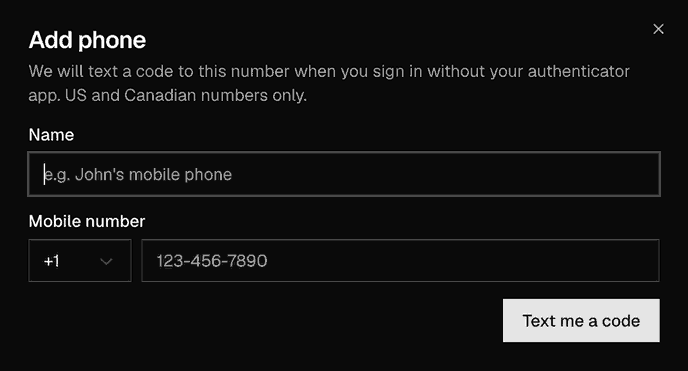
Give the phone a name (for example, "My mobile"), enter your mobile number, and click Text me a code.
Enter the 6-digit code we text you and click Add phone.
You can also choose Use text messages instead when Hanover Park asks you to set up two-factor authentication at sign-in.
Sign In with a Texted Code
Sign in with your email and password as usual.
When asked for a code, choose your phone. We text you a 6-digit code.
Enter the code in Text message code and click Verify. Codes expire after a few minutes, so use the latest one.
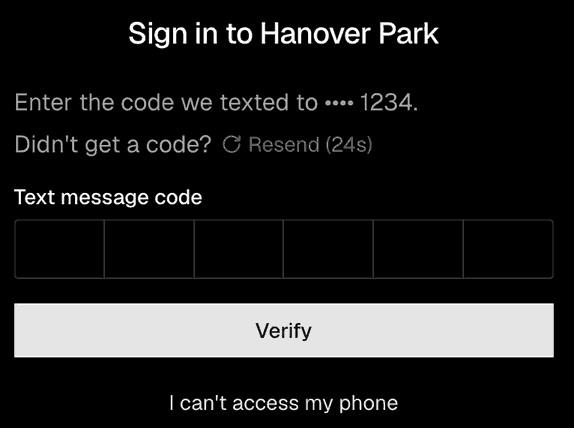
If the text doesn't arrive, wait 30 seconds and click Resend. Check that you have cell reception and that your carrier isn't blocking short-code messages.
Remove a Phone
Go to Settings → Security → Two-factor authentication.
Next to the phone, click the trash icon labeled Remove authenticator.
Confirm with a code from one of your devices.
Lost Access to Your Phone?
On the sign-in screen, click I can't access my phone. Sign in with your authenticator app or your recovery key instead, then remove the old phone and add your new number.