Signing In with Google
Last updated: October 13, 2026
If your work email is a Google account (Google Workspace or Gmail), you can sign in with Google instead of typing a password.
Sign In with Google
Go to the Hanover Park sign-in page and enter your email.
Click Sign in with Google.
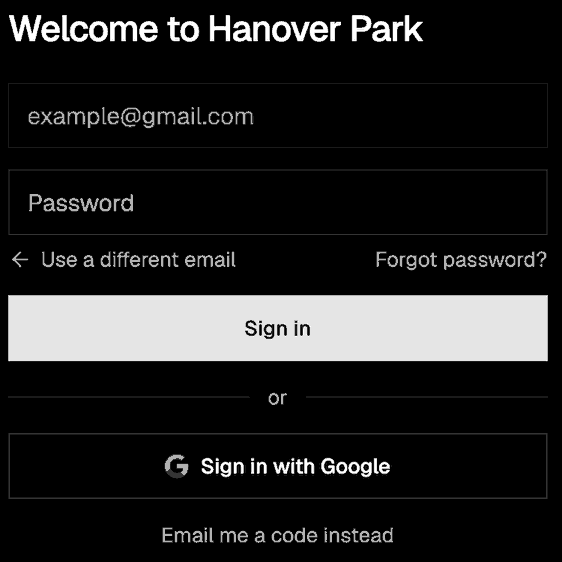
Choose the Google account with the same email as your Hanover Park account.
Enter a code from your authenticator app, or a texted code, when asked. Signing in with Google doesn't replace this step.
The first time you sign in with Google, Hanover Park connects that Google account to your account automatically. There's nothing to set up beforehand.
"Couldn't Sign In with Google"
This means the Google account you chose doesn't match a Hanover Park account. Try again and pick the Google account with the same email you were invited with, or sign in with your email and password instead.
Signing in with Google can't create a new account. If you don't have a Hanover Park account yet, ask your firm admin for an invitation.
See Your Connected Google Account
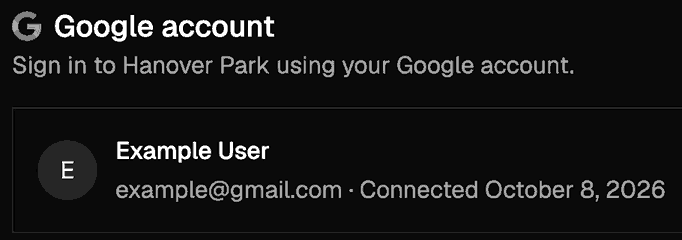
Go to Settings → Security. Under Google account, you'll see the Google account connected to your sign-in and when it was connected.
Can I Still Use My Password?
Yes. Signing in with Google is an extra option. Your email and password keep working, and you can switch between them whenever you like.