Signing In with a Password
Last updated: October 8, 2026
Sign in to Hanover Park with your email and password. If you haven't set a password yet, set one as soon as you can: it's the standard way to sign in.
Sign In
Go to app.hanoverpark.com and enter your email address.
Enter your password and click Sign In.
If you have an authenticator set up, enter the 6-digit code from it.
No password yet? We email you a sign-in code instead. Enter the code to sign in, then set a password right away (see below). If this is your first time signing in, see 📄 Logging In for the First Time.
Set a Password
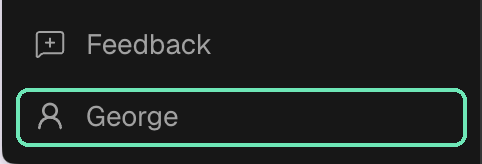
Click your name at the bottom of the left sidebar to open Settings.
Click Security.
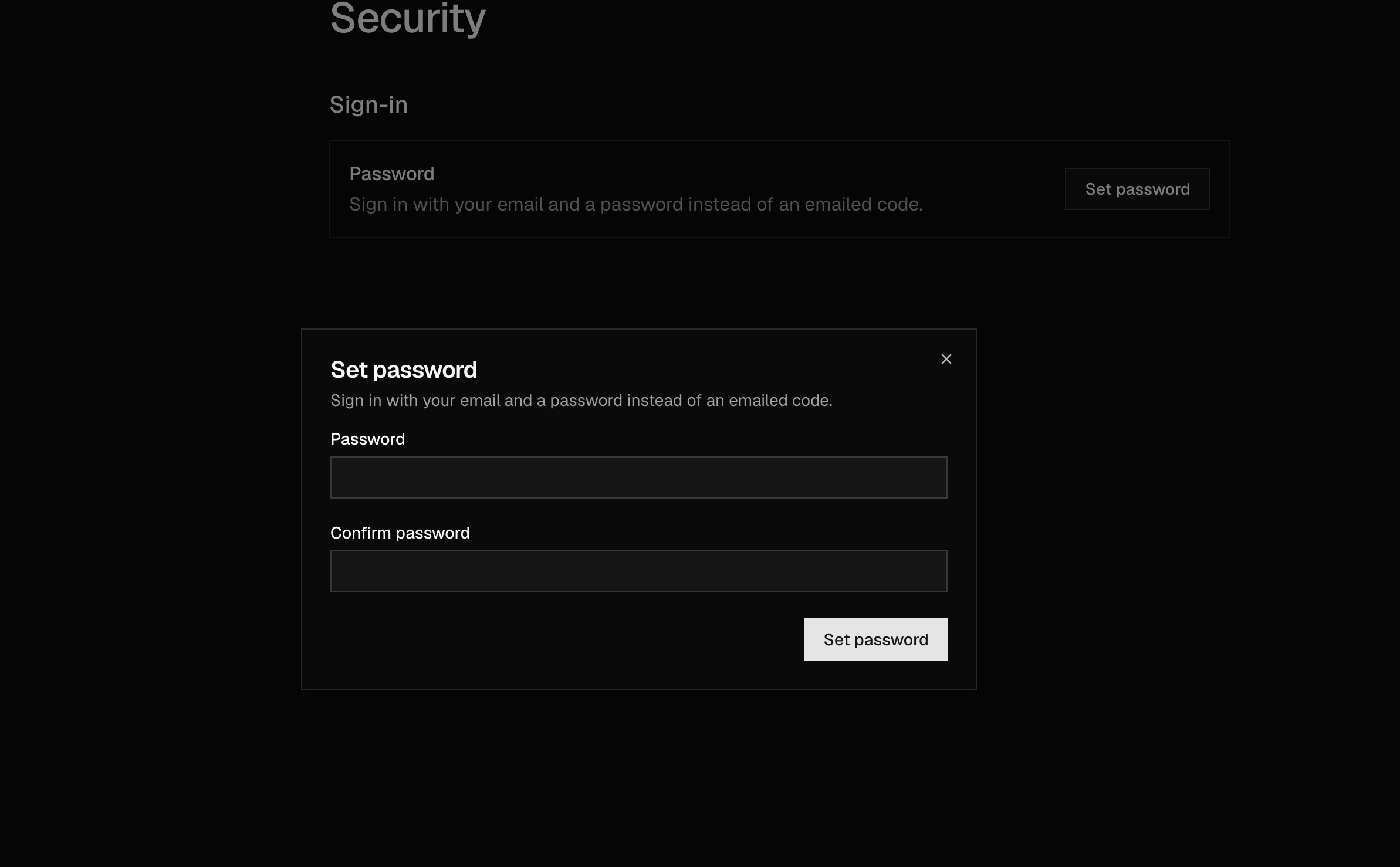
Under Sign-in, next to Password, click Set password.
Enter your new password in Password and Confirm password, then click Set password.
Password Rules
Your password needs:
At least 10 characters
An uppercase letter, a lowercase letter, and a number
We also refuse passwords that have appeared in a known data breach.
Change Your Password
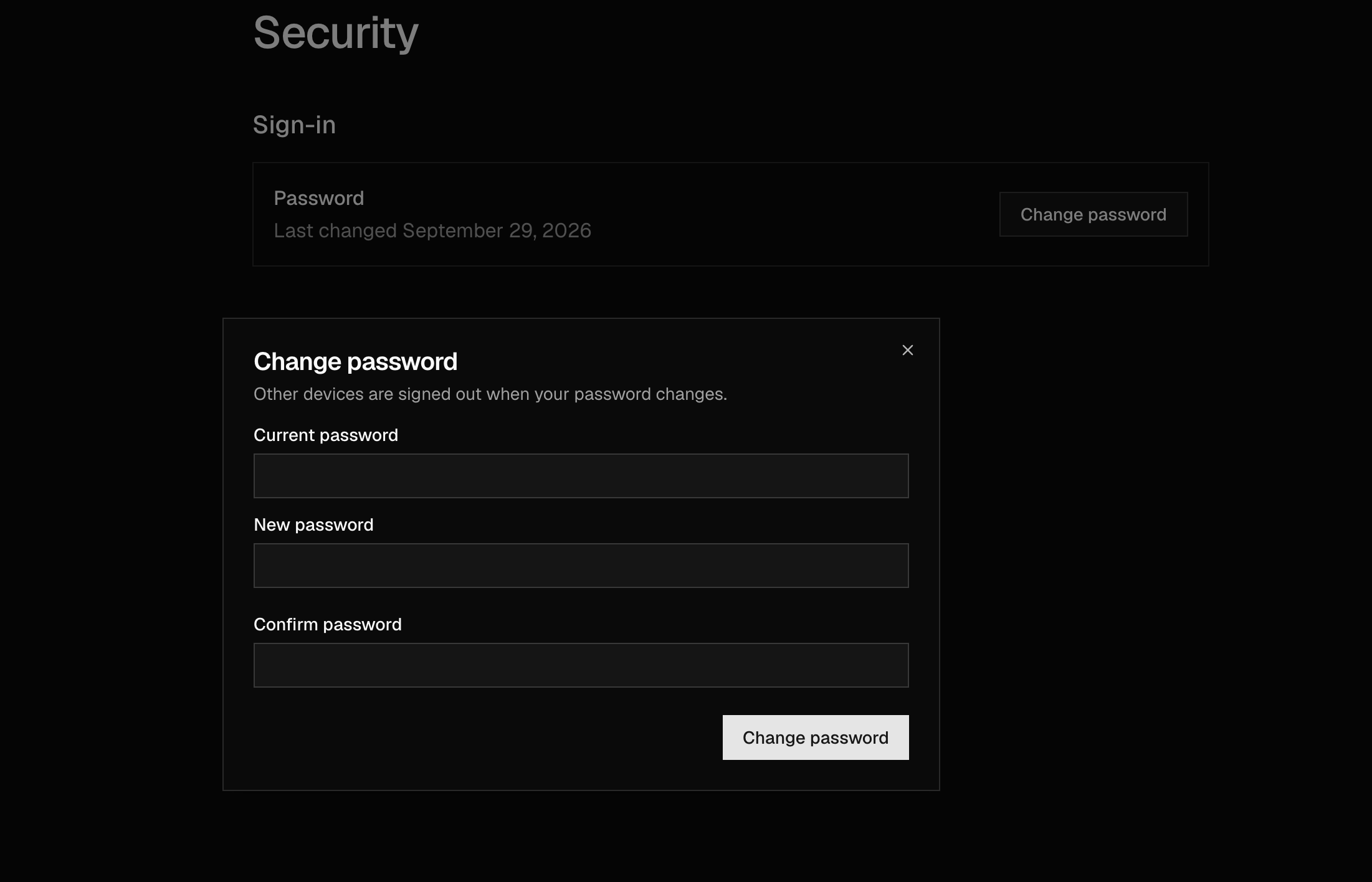
Go to Settings → Security. Next to Password, you'll see when it was last changed.
Click Change password.
Enter your Current password, then your New password and Confirm password.
Click Change password.
When your password changes, you're signed out on your other devices. Sign back in there with the new password.
For your security, you can only change your password within 24 hours of signing in. If it has been longer, you'll be asked to sign out and sign back in first.